
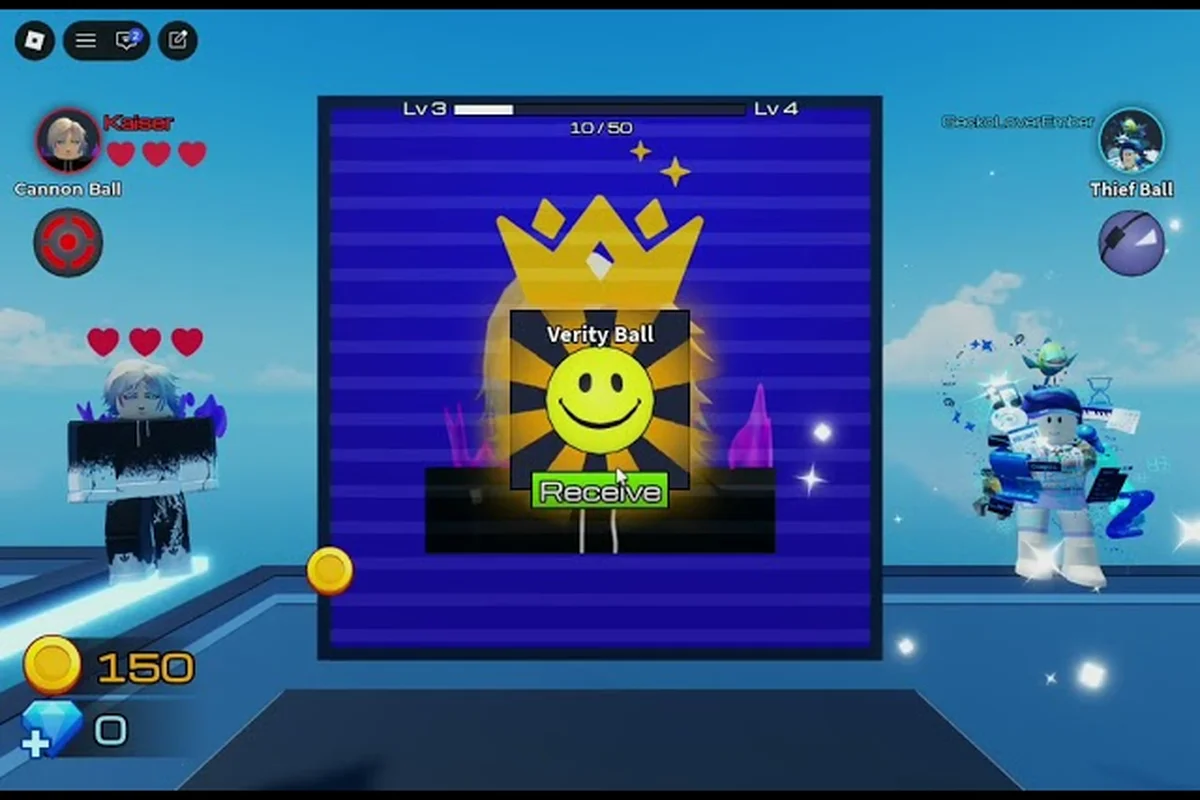
Ball VS Ball controls not working usually comes down to three culprits: a stale Roblox input binding, a blocked chat permission, or a device-specific quirk that the Roblox client does not always document clearly. The official Ball VS Ball Roblox page confirms that the entire experience depends on responsive movement and mid-battle rerolls, so any input lag or unresponsive key is a direct blocker to the core loop. This guide walks through every layer where input can break — keyboard, mouse, gamepad, cross-platform parity, and the in-game chat that newer players often need to coordinate rerolls with teammates.
Diagnosing Ball VS Ball Controls Not Working in the Roblox Client
Before remapping anything, the first task is identifying whether the failure sits inside the game or inside the Roblox shell that hosts it. Because Ball VS Ball is a Roblox title (place 96510596525082, universe 10685282333, published by the ATYS 3 group), every input action is filtered through Roblox's player module before it reaches the arena. When the arena never sees your keypress, the bug is almost always in that layer, not in the developer's code.
Why the Roblox Layer Matters More Than the Game Itself
Ball VS Ball is one of many small-scale arena fighters published under the ATYS 3 banner. The developer does not ship a standalone launcher, so you cannot sidestep Roblox by installing a different client. Every movement, jump, and reroll action is processed by the same engine module that powers thousands of other experiences, which means a single misconfigured Roblox setting can take down controls across the entire platform.
Community testing reported by players on the official ATYS 3 group page shows that group-joined accounts sometimes inherit permission differences that affect voice and chat access. Because Ball VS Ball uses Roblox's default chat layer, a group-joined account that has not yet enabled the right privacy toggle may look like it has broken controls when the real symptom is a muted channel.
Quick Triage Checklist for Stuck Inputs
| Step | Action | Expected Result | If It Fails |
|---|---|---|---|
| 1 | Re-enter the arena from the main menu | Input registers within 2 seconds | Controls stay dead → restart the Roblox client |
| 2 | Open Roblox Settings → Controls | All bindings listed, no greyed-out fields | Missing bindings → reset to default and retry |
| 3 | Press WASD + Space in a free-roam Roblox experience | Character moves and jumps | No response → input is blocked at OS level |
| 4 | Toggle Shift Lock and replay | Camera and movement both react | Camera only moves → key conflict in Ball VS Ball |
| 5 | Test the in-game chat box | Text submits with the Enter key | Box opens but does not send → chat permission issue |
If the same key fails in step 3 inside any other Roblox game, the issue is not Ball VS Ball; it is the Roblox install, the keyboard profile, or an OS-level capture tool. The troubleshooting path forks here, and the rest of this guide assumes Ball VS Ball is the only place the input misbehaves.
Ball VS Ball Keyboard Controls and the Default Keymap
Ball VS Ball inherits Roblox's stock WASD layout, so most keyboard problems come from one of four sources: a custom keybind that the player forgot they set, an OS-level keyboard layout mismatch, a background process stealing the key, or a Roblox experimental flag that intercepts input. Knowing the default map is the fastest way to confirm whether a key is even supposed to exist in the arena.
Default Keymap Used by Ball VS Ball
| Action | Primary Key | Secondary Key | Notes |
|---|---|---|---|
| Move forward | W | Up Arrow | Both keys work simultaneously |
| Move back | S | Down Arrow | Used to bait opponents mid-fight |
| Move left | A | Left Arrow | Camera-relative on Shift Lock |
| Move right | D | Right Arrow | Camera-relative on Shift Lock |
| Jump | Space | None | Cancels a low-tier ball on jump input |
| Reroll ball | R | None | The single most important combat key |
| Open chat | Enter | / | Sends only if chat permission is enabled |
| Open emote wheel | B | None | Disabled on some accounts under 13 |
| Camera mode toggle | Shift | None | Switches between follow and Shift Lock |
| Mute / unmute voice | M | None | Only when Roblox voice is active |
The reroll key (R) is the one that most often "stops working" because players bind it to something else by accident, then forget the override. If R does nothing in the arena, open the Roblox Controls menu, search for "Reroll", and confirm the binding still points to R. Many community guides, including the Ball VS Ball general walkthrough, underline that remapping the reroll key is one of the top three mistakes new players make.
Why Keyboard Layouts Sometimes Break Ball VS Ball Controls
A surprising number of reports labeled as "Ball VS Ball controls not working" are actually keyboard layout issues. If you play on a non-US keyboard, the letters W, A, S, D, R, and Space still map to the same physical keys, but Roblox's input layer reads them through the active layout. When a player switches the OS layout for a different language mid-session, Roblox may continue to interpret the key as the previous layout's letter. The symptom looks like a dead key, but the fix is simply re-selecting the original layout before launching the game.
Laptop users on 60% or 75% keyboards face a related issue: R, the reroll key, sits next to E and T, which are common movement overrides. If a keycap is loose or the chassis is misaligned, the physical press may not register even though the OS shows a clean input. Pressing R in a text field inside the same browser tab is the cleanest test — if the letter appears, the hardware is fine.
Ball VS Ball Gamepad Support and Controller Bindings
Ball VS Ball does not advertise first-class controller support on its store page, but Roblox itself has rolled out increasingly capable gamepad handling over the past two years, and arena games in particular tend to inherit that support. That means a controller "just works" in many cases, but it can also fail in confusing ways when the Roblox client decides the device is not trusted.
How Roblox Routes Gamepad Input to Ball VS Ball
| Controller Family | Default Detection | Known Issues | Recommended Fix |
|---|---|---|---|
| Xbox One / Series | Plug-and-play | Stick drift is interpreted as constant movement | Recalibrate the stick in Windows settings |
| Xbox 360 | Plug-and-play | Older drivers sometimes hide input from Roblox | Update the driver through Device Manager |
| PlayStation 4 / 5 | Plug-and-play on PC, manual pairing on macOS | DS4 may not be detected on Windows 11 without DS4Windows | Use Steam Input as a passthrough |
| Generic HID gamepad | Detected as a mouse by default | No in-game control over the reroll key | Set to "Gamepad" mode in Roblox Controls |
| Mobile Bluetooth controller | Works through Roblox Mobile | Latency on Android 12 and below | Update the OS and reconnect the device |
If the controller shows up in the Roblox Controls page but does nothing in the Ball VS Ball arena, the most common reason is that the controls menu has it set to "Mouse Emulation". In that mode, the left stick moves the cursor, not the character. Switch the dropdown to "Gamepad" and the bindings become active immediately.
Adjusting Sensitivity and Dead Zones
Even when the controller works, players report feeling like the controls are "laggy" because Roblox applies a default dead zone that is tuned for platformer-style Roblox titles. Ball VS Ball is closer to a top-down brawler, so the default dead zone feels heavy. There is no in-game slider, but two workarounds help:
-
Open the Windows Game Bar, select the controller, and lower the dead zone to 5–8 percent. Roblox will read the new range on the next input event.
-
If the right stick feels too slow when steering the camera, lower the camera sensitivity slider in the Roblox Controls menu to its minimum. This counterintuitively makes small adjustments feel less mushy because the linear response curve has more granularity at the bottom of the slider.
Players who want a more permanent controller profile can map the controller through Steam Input, then launch the Roblox client from Steam. The Steam layer reinterprets the controller as an Xbox-compatible device, which sidesteps most detection quirks on Windows 11.
Ball VS Ball Cross Platform Parity and Why Mobile Feels Different
Ball VS Ball runs on PC, mobile, and console browsers through the same Roblox client, but the input layers are tuned for each device. A keyboard-and-mouse player and a touch player can both join the same arena, and the game is supposed to balance for both. When one platform feels broken, it is almost always because the input layer is sending signals the arena does not know how to translate.
Input Differences Across Each Platform
| Platform | Primary Input | Touch UI Present | Reroll Gesture | Voice Chat Available |
|---|---|---|---|---|
| Windows PC | Keyboard + Mouse | No | Press R | Yes, with permission |
| macOS | Keyboard + Mouse | No | Press R | Yes, with permission |
| iOS / iPadOS | Touch | Yes | Tap reroll button | Limited, age-gated |
| Android | Touch | Yes | Tap reroll button | Yes, with permission |
| Xbox Cloud | Controller | No | Press X (default) | No on cloud sessions |
The touch reroll button on mobile is a separate UI element from the keyboard R key, and it is positioned near the jump button by default. Players on small-screen phones sometimes report "controls not working" because the jump button and the reroll button overlap, so a thumb swipe intended for jump actually fires a reroll — or vice versa. Moving the UI buttons apart in the Roblox mobile controls editor is the standard fix.
Why Cross-Platform Parties Sometimes Lose Input Sync
When a PC player parties with a mobile player, both clients receive the same arena state, but the input timing is different. The PC player can reroll in roughly 100 ms, while a touch player needs 250–400 ms because the button has a hold delay. If a mobile player reports "I pressed reroll but nothing happened", the cause is almost always the touch-and-hold delay. Tapping the reroll button quickly, without holding it, fires the action immediately. This timing difference is also why some cross-platform matches feel unfair: the PC player can react to a ball change before the mobile player's reroll registers.
Ball VS Ball Chat Not Working, Voice Chat, and Age Rating
The in-game chat layer is a separate system from the combat input layer, but it shares the same Roblox permission model. When players say "controls are broken" they sometimes mean the chat box opens but does not send, or the voice channel is silent. Both are usually permission problems rather than input problems, and the age rating on the title is the most common reason permissions are restricted.
Why Age Rating Affects Chat More Than Combat
Ball VS Ball carries the standard Roblox content descriptor, which the platform maps to a 9+ audience label. The age rating is enforced at the Roblox account level, not at the game level, so the same game behaves differently for a 9-year-old account than it does for a 20-year-old account. Combat input is unaffected, but chat and voice are gated by an account setting that the player — or in the case of a child account, the parent — must explicitly enable.
| Account Age | Text Chat | Voice Chat | Party Chat | Private Messages |
|---|---|---|---|---|
| Under 9 | Public text only | Blocked | Blocked | Blocked |
| 9 – 12 | Public + friends | Limited | Friends only | Blocked by default |
| 13+ | Full | Available with phone verification | Friends + party | Available |
| Phone-verified 13+ | Full | Full | Full | Full |
When the chat box opens, accepts text, and refuses to send, the most common cause is a privacy setting that the parent has not yet toggled. The account holder (or guardian, for child accounts) can adjust the toggle from Roblox Settings → Privacy. The change takes effect within 60 seconds on most clients, so a quick rejoin of the Ball VS Ball arena is enough to confirm the fix.
Voice Chat Specifics for Ball VS Ball
Ball VS Ball uses Roblox's default spatial voice system when voice is enabled, which means proximity in the arena controls who can hear whom. This is useful for coordinating rerolls, but it can also be the reason a player believes "voice is not working": they are standing too far from teammates, or the team is on the opposite end of the arena. Roblox's spatial voice has a default range of roughly 80 Roblox studs, which is about half the width of a typical Ball VS Ball arena. Players who want to use voice to call rerolls need to be near each other in the arena, not just on the same team.
If voice still does not work after a privacy check, the next step is to confirm that the Roblox client has microphone permission at the OS level. Windows 11 sometimes revokes microphone access after a major update, and a player who has not used any voice-enabled Roblox title for several months may find that the OS-level toggle is off. Re-enabling it in Settings → Privacy → Microphone on Windows, or in System Settings → Privacy on macOS, restores the input.
Practical Fixes When Nothing Else Has Worked
Most control problems in Ball VS Ball come from one of the categories already covered, but a small slice of cases survive every fix above. Those usually come down to a corrupt Roblox cache, an outdated Roblox client, or an antivirus tool that intercepts the input layer. The steps in this section are heavier than a remap, so work through them in order and stop as soon as the controls come back.
Layered Fix Order for Persistent Issues
| Priority | Fix | What It Resolves | Risk Level |
|---|---|---|---|
| 1 | Reinstall Roblox from the official site | Corrupt client files | Low |
| 2 | Clear the Roblox cache folder | Stale input bindings | Low |
| 3 | Update GPU drivers | Input lag from frame drops | Low |
| 4 | Disable antivirus input scanning | Hooked keyboard events | Medium |
| 5 | Test in a clean Roblox experience | Confirms whether the bug is in Ball VS Ball | None |
| 6 | File a bug report via the the AtysGames developer profile | Developer-side confirmation | None |
The antivirus fix in step 4 is the one players overlook most often. Tools like Bitdefender, Kaspersky, and certain configurations of Norton install a "keyboard protection" module that intercepts every keypress at the driver level. The Roblox client sends the keypress, the antivirus scans it, then forwards the event — but the round trip can take long enough that the arena registers the press as a held key, not a quick tap. That is why a perfectly working keyboard can feel "stuck" in Ball VS Ball while behaving normally in any other app. Adding the Roblox install folder to the antivirus exception list is the cleanest fix.
Players who reach step 6 should include their platform, the exact key or button that is failing, and a short video if possible. Because Ball VS Ball is published by a small group rather than a major studio, the response time is often faster than players expect — community reports suggest replies within 24–48 hours when the bug report includes a screen recording.
Frequently Asked Questions
Why are my Ball VS Ball controls not working even though the keys are bound?
When the binding is set correctly but the keys still do nothing in the arena, the most common cause is a stale Roblox input cache. Close the game, exit the Roblox client fully, then reopen Ball VS Ball. If that fails, clear the Roblox cache folder and reset the controls to default. This pattern is also covered in the Ball VS Ball general troubleshooting guide, which walks through the same steps for a wider range of input bugs.
Does Ball VS Ball support gamepads on PC?
Yes, Ball VS Ball inherits Roblox's gamepad layer, so Xbox and most PlayStation controllers are detected automatically. The key is making sure Roblox's Controls menu lists the device as "Gamepad" rather than "Mouse Emulation". If the controller shows up as a mouse, the left stick moves the cursor instead of the character, which can look like broken controls.
Can I play Ball VS Ball with friends on a different platform?
Yes, Ball VS Ball supports cross-platform play between PC, mobile, and console browsers through Roblox. The arenas are shared, but the input layers differ, so a touch player will reroll slightly slower than a keyboard player. This is by design and not a bug, but it is worth knowing before queuing into a competitive match.
What is the Ball VS Ball age rating, and does it block voice chat?
The game is rated 9+ through Roblox's content descriptor system, but the real age gate is the player's Roblox account, not the game. Accounts under 13 have limited or no voice chat access depending on the privacy settings. To unlock full voice chat, the account holder must be 13 or older and verify a phone number, after which proximity voice works inside the arena.
Why is my Ball VS Ball chat not working even though I can type?
If the chat box opens and accepts text but does not send, the issue is almost always an account-level privacy setting rather than an input bug. Open Roblox Settings → Privacy and confirm that "Who can chat with me" is set to "Everyone" or "Friends" depending on preference. After the change, rejoin the arena and the chat will send within a minute.